
Processing Transations
How to Process a Sale
A Sale processes a payment and captures the funds immediately.
- From the Pay screen, select Sale.
- Enter the transaction amount.
- Tap Next once it becomes enabled.
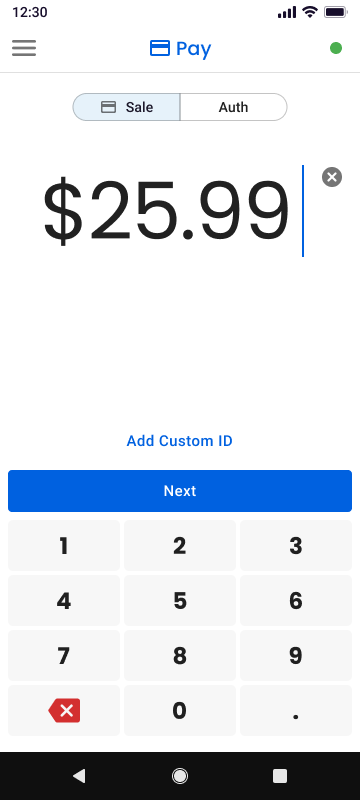
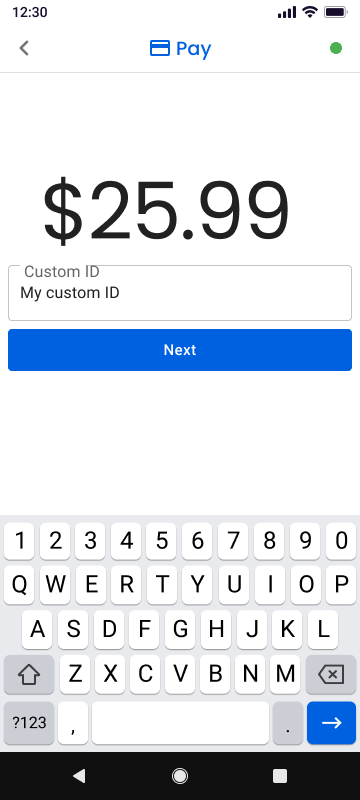
Optional: Custom IDYou may tap Custom ID to add an internal reference such as an invoice number or order number. Enter the identifier if needed and continue with the transaction.
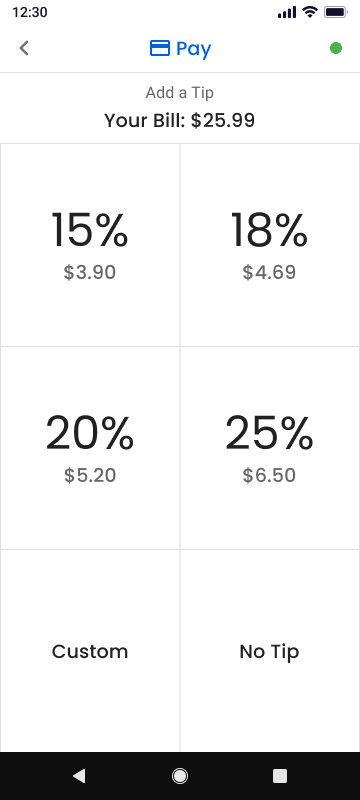
- If tipping is enabled, the Add Tip screen will appear. Select one of the available options:
- 15%
- 18%
- 20%
- 25%
- Custom Tip
- No Tip
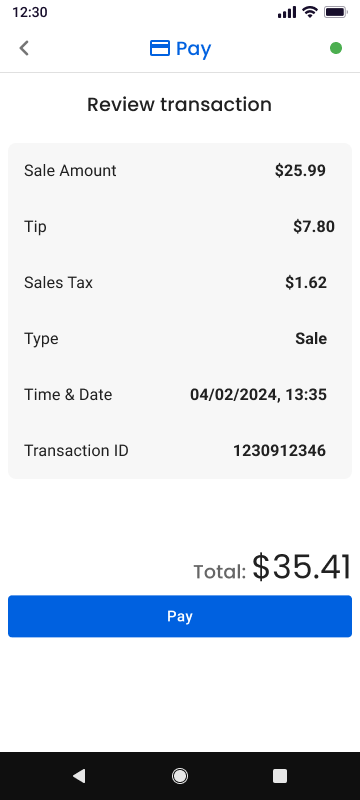
- Review the transaction details and tap Pay.
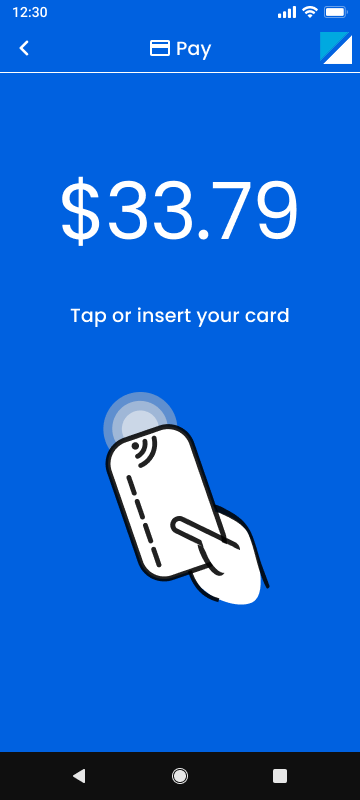
- The screen will prompt the customer to tap or insert their card using the card reader device.
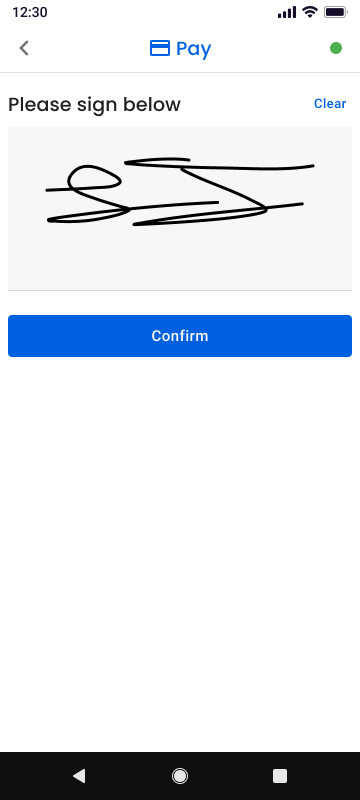
- If required, the customer will be prompted to provide a signature. Tap Confirm after the signature is captured.
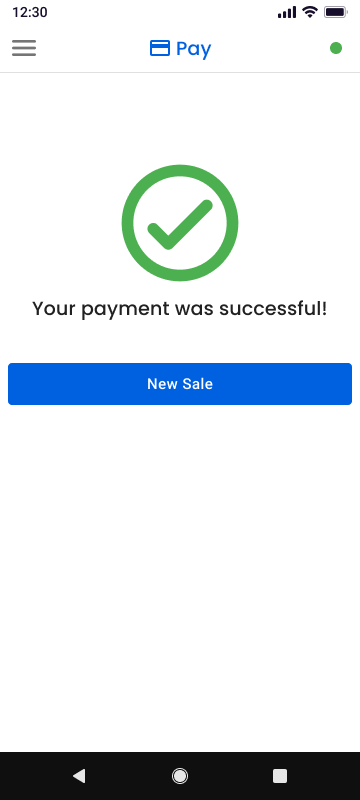
- Once the transaction is processed, the app will display either a confirmation screen or a failure screen.
- Tap New Sale to return to the Pay screen and begin another transaction.
How to Process an Authorization
An authorization (Auth) verifies that funds are available on the customer’s card but does not capture the funds until the transaction is later completed.
- From the Pay screen, select Auth.
- Enter the transaction amount.
- Tap Next once it becomes enabled.
Optional: Custom IDYou may tap Custom ID to add an internal reference such as an invoice number or order number. Enter the identifier if needed and continue with the transaction.
- Review the transaction details and tap Authorize.
- The screen will prompt the customer to tap or insert their card using the card reader device.
- If required, the customer will be prompted to provide a signature.
Tap Confirm after the signature is captured. - Once the authorization is processed, the app will display either an authorization confirmation screen or a failure screen.
- Tap New Sale to return to the Pay screen and begin another transaction.
Updated 3 months ago
Did this page help you?