
Connection Status and Troubleshooting
Connection RequiredIf the card reader is not connected when BluePOS Go is launched, a dialog message will appear indicating that the application is unable to find the payment device and that transactions cannot be processed until a connection is established.
Check Connection Status
You can verify the connection status of the card reader within the application:
- Open Settings.
- Navigate to Terminal & System.
- Select Status.
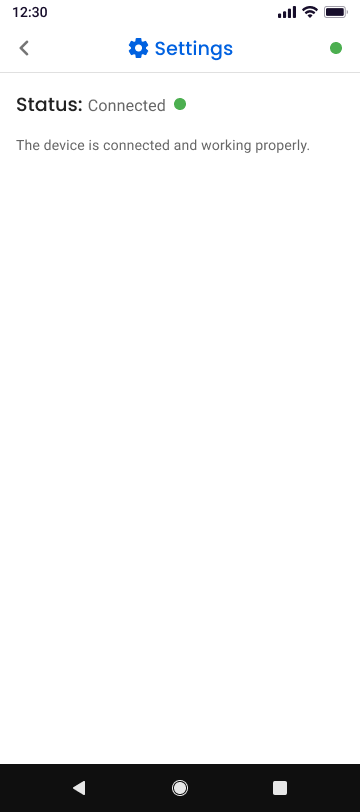
The Status screen will display the current connection state of the card reader, such as:
- Connected
- Connecting
- Not Connected
Reconnect the Card Reader
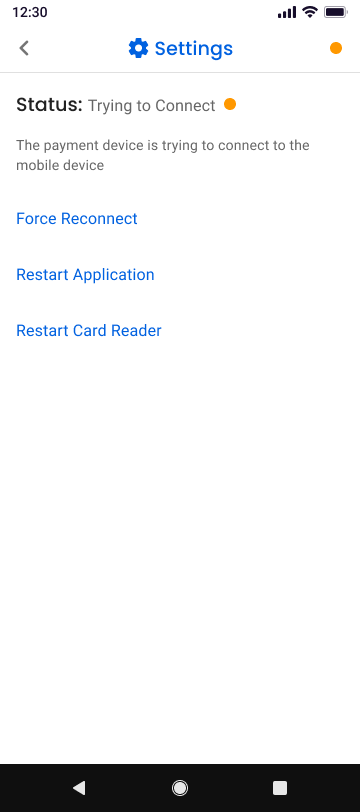
If the device status shows Not Connected, you can attempt to restore the connection using one of the following options:
- Force Reconnect: Attempts to re-establish the Bluetooth connection between the mobile device and the card reader.
- Restart Application: Closes and reopens the app to reset the connection.
- Restart Card Reader: Power the card reader off and back on, then reconnect through the app.
After completing one of these actions, verify that the device status updates to Connected before attempting a transaction.
Updated 3 months ago
Did this page help you?