
Getting Started
Introduction
This guide explains how to download, install, and begin using BluePOS Go, a mobile payment application designed to securely process transactions and manage payments.
BluePOS Go is available for both iOS and Android devices. Follow the instructions below to download the app and sign in to your account.
Download the App
BluePOS Go can be downloaded from the Apple App Store or Google Play Store.
iOS
- Open the App Store on your iPhone or iPad.
- Search for BluePOS Go.
- Select BluePOS Go from the search results.
- Tap Get to download and install the app.
- Once installation is complete, open BluePOS Go.
Android
- Open the Google Play Store on your Android device.
- Search for BluePOS Go.
- Select BluePOS Go from the search results.
- Tap Install.
- Once installation is complete, open BluePOS Go.
If you are unable to locate or download BluePOS Go, contact your system administrator or support team for assistance.
Open the App
- Once installation is complete, locate the BluePOS Go app on your device.
- You can find the app on your device’s home screen or in your app drawer.
- Tap the BluePOS Go icon to launch the app.
Log In to BluePOS Go
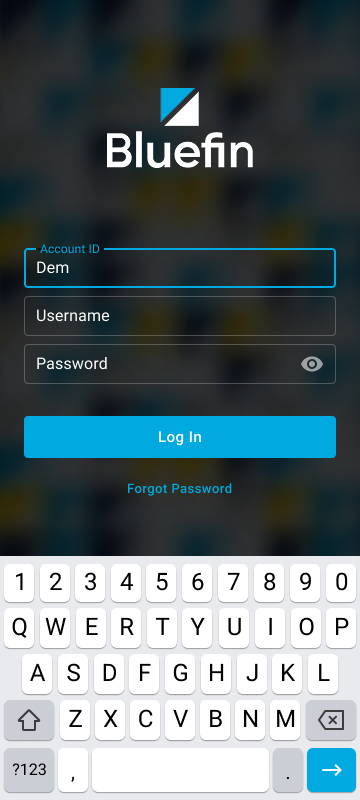
Once BluePOS Go is installed and opened, you will need to log in using your PayConex account credentials.
The login information used for BluePOS Go is the same as the credentials used to access your PayConex account.
Steps to Log In
- Open BluePOS Go on your device.
- On the Login screen, enter your Account ID.
- Enter your Username.
- Enter your Password.
- Tap Log In to access the application.
Login HelpIf you experience issues logging in, verify that your Account ID, Username, and Password match the credentials used for your PayConex account. If the issue persists, contact your system administrator or support team for assistance.
Pay Screen Overview
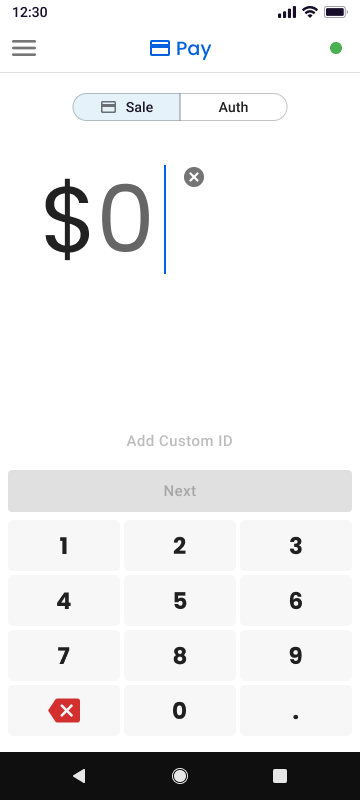
After logging in, you will be directed to the Pay screen. This is the default screen used to process payment transactions.
At the top of the Pay screen, you will see two transaction options:
- Sale: Processes a payment immediately.
- Auth: Authorizes a payment amount on the customer’s card without capturing the funds immediately.
To select a transaction type, tap either Sale or Auth. The selected option will determine how the transaction is processed.
App Navigation Overview
The main navigation menu allows you to access other areas of BluePOS Go.
To open the navigation menu:
- Tap the menu icon (☰) located in the corner of the Pay screen.
- The navigation menu will appear displaying the main sections of the app.
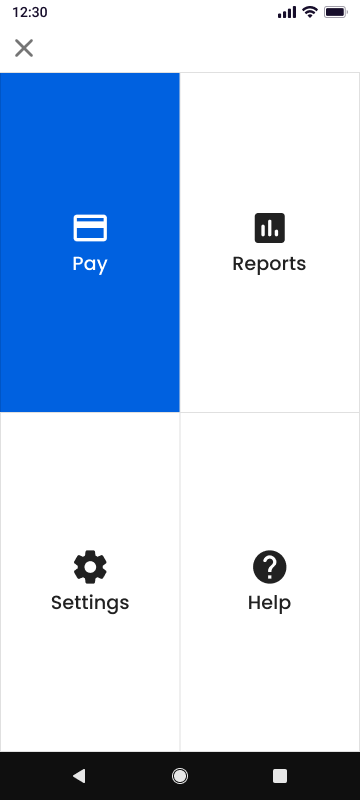
The navigation menu includes the following options:
- Pay: Return to the Pay screen to process transactions.
- Reports: View transaction history and reporting information.
- Settings: Manage application and account settings.
- Help: Access support resources and assistance.
Select any option from the menu to navigate to that section of the app.
Updated 4 days ago