
Connecting the Card Reader (Android)
The VP3350 card reader connects to your Android mobile device using Bluetooth. Once connected, BluePOS Go uses the card reader to process payment transactions. On Android devices, the card reader is discovered and connected through the app during the pairing process.
Connect the Card Reader
- Make sure Bluetooth is turned on for your mobile device
- Open BluePOS Go
When the app opens, a message will appear to help you connect your card reader.
If the card reader is not turned on
You will see:
Device Not Found
You can choose:
- Cancel to close the message
- Enter Manually
- Try Again after turning on the card reader
If your card reader is turned on
- Tap Try Again
- The app will search for nearby Bluetooth devices
- A list of available devices will appear
- Select ID TECH VP3350 from the list
You can also choose:
- Cannot Find Device
- Cancel
After selecting the card reader
- A message will appear showing that the device is pairing
- A Bluetooth pairing request will appear
- Tap Pair
- Enter the pairing PIN (usually 0000 or 1234)
- Tap Pair
The app will finish connecting to the card reader. You may see a brief loading message while this happens. The card reader will show green lights once it is connected.
Connection Complete
- The message will close automatically
- You will return to the Sale screen
- A confirmation message will show that the VP3350 is connected
Once connected, the card reader will be ready to process transactions within the application.
Connection Status and Troubleshooting
Connection RequiredIf the card reader is not connected when BluePOS Go is launched, a dialog message will appear indicating that the application is unable to find the payment device and that transactions cannot be processed until a connection is established.
Check Connection Status
You can verify the connection status of the card reader within the application:
- Open Settings.
- Navigate to Terminal & System.
- Select Status.
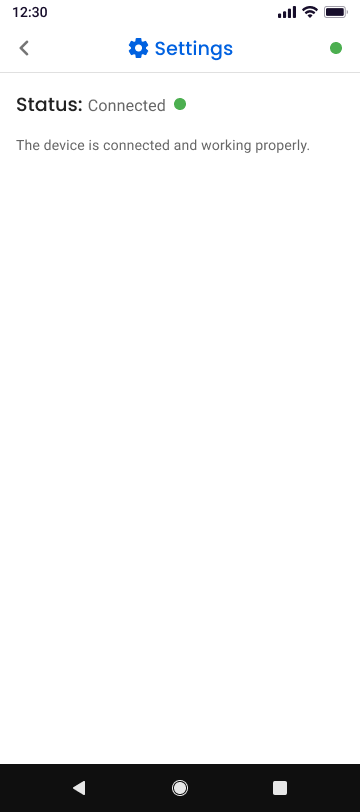
The Status screen will display the current connection state of the card reader, such as:
- Connected
- Connecting
- Not Connected
Reconnect the Card Reader
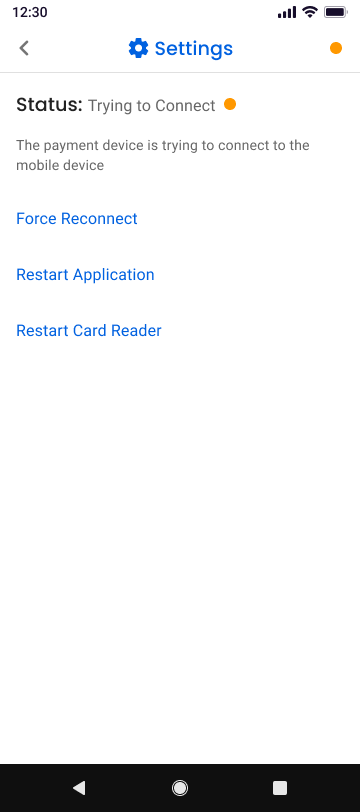
If the device status shows Not Connected, you can attempt to restore the connection using one of the following options:
- Force Reconnect: Attempts to re-establish the Bluetooth connection between the mobile device and the card reader.
- Restart Application: Closes and reopens the app to reset the connection.
- Restart Card Reader: Power the card reader off and back on, then reconnect through the app.
After completing one of these actions, verify that the device status updates to Connected before attempting a transaction.
Updated 3 months ago