
Settings
The Settings section allows users to view terminal information and manage transaction and account settings.
- To access Settings, tap the menu icon (☰) on the Pay screen.
- Select Settings from the navigation menu.
- The Settings screen will open.
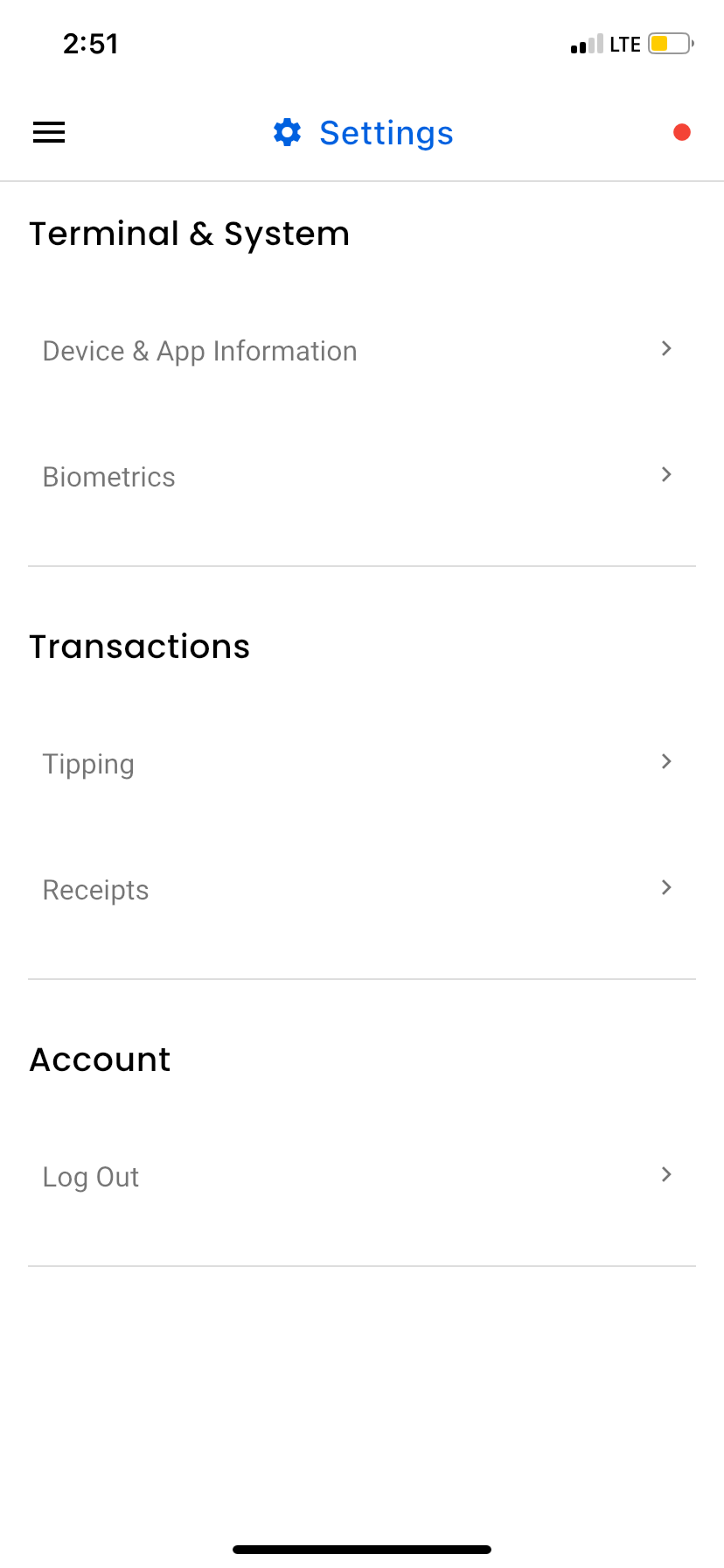
- The Settings page is organized into the following sections:
- Terminal & System
- Transactions
- Account
Terminal & System
The Terminal & System section provides information about the device and application status.
Status
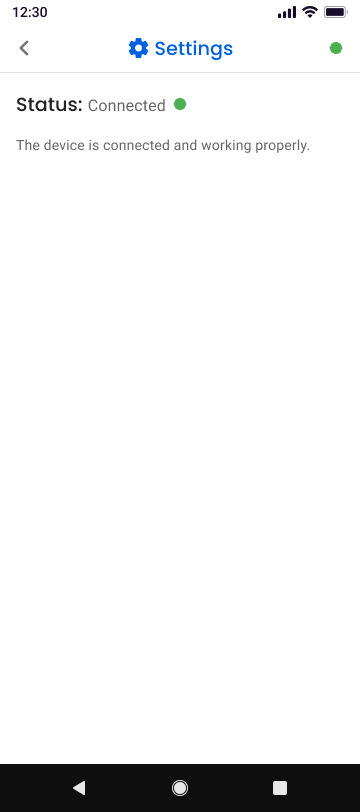
The Status option displays the current status of the application and terminal connection. This information can help identify potential connectivity or device issues.
The Status screen displays the card reader connection status.
Device & App Information
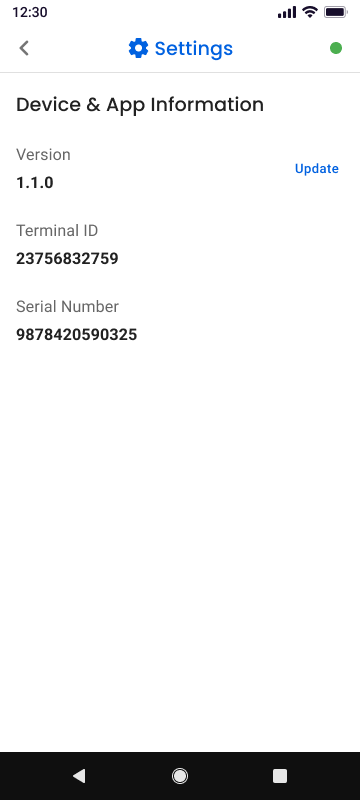
The Device & App Information option displays details about the application and device being used.
Information displayed includes
- Application version
- Terminal ID
- Serial Number
This information may be requested when contacting support or troubleshooting an issue.
Transaction Settings
The Transaction section allows users to configure how transactions are processed.
Tipping
The Tipping setting allows merchants to enable or disable tipping during transactions.
When tipping is enabled, customers will be presented with tip options during checkout, such as percentage-based tips or a custom tip amount.
To enable or disable tipping:
- Open Settings.
- Tap Tipping.
- Toggle the Tipping option On or Off.
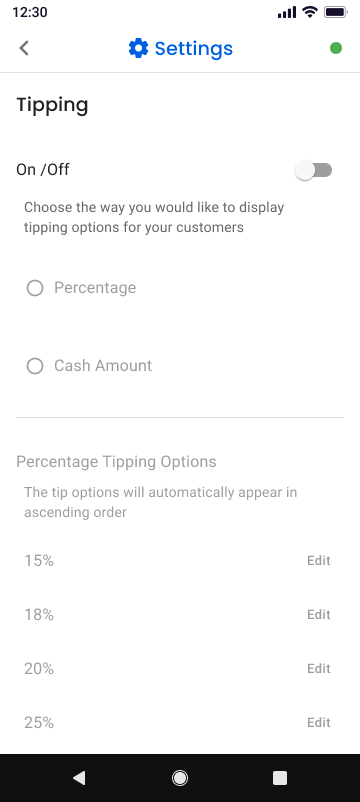
- Select Percentage or Cash Amounts.
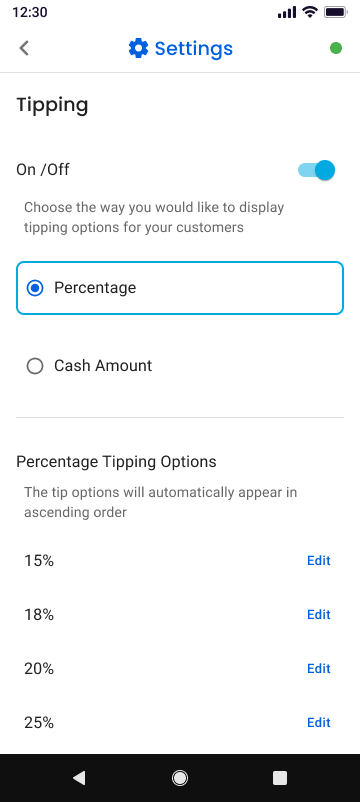
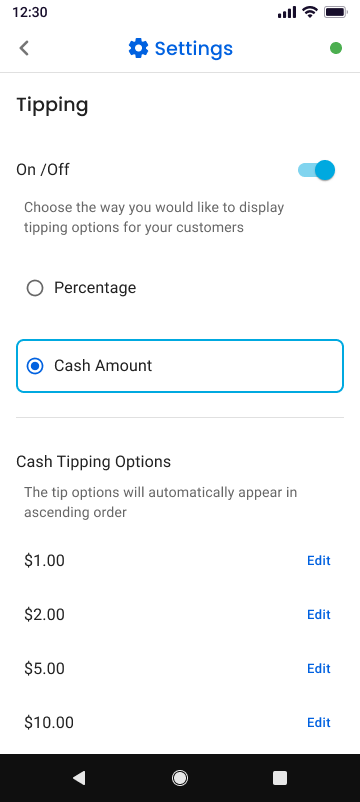
When disabled, the tip selection screen will not appear during the payment process.
Currency
The Currency setting determines the currency used for transactions processed within the application.
All transaction amounts and reports will be displayed using the selected currency.
- Open Settings.
- Tap Currency.
- Select the desired currency from the available options.
Signature Enablement
The Signature setting controls whether a customer signature is required after completing a transaction.
When enabled, customers will be prompted to provide a signature during the payment process.
- To enable or disable signature capture, Open Settings.
- Tap Signature.
- Toggle Signature Required On or Off.
Security
The Security section allows users to configure security settings.
Passcode
The Passcode setting allows users to secure access to BluePOS Go by requiring a passcode when opening the application or accessing certain features.
The Passcode screen includes the following options:
- Change Passcode
- Turn Off Passcode
- Forgot Passcode
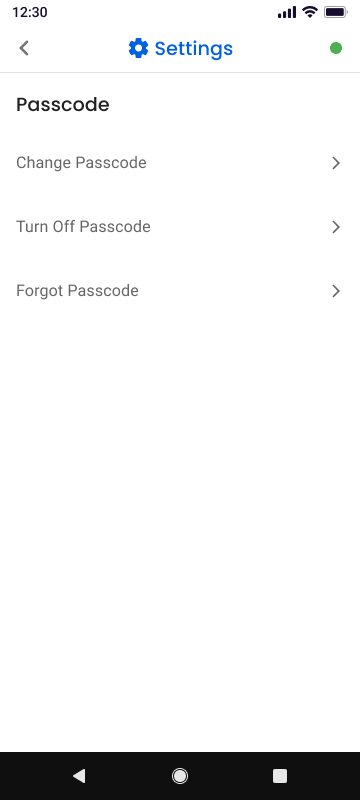
Change Passcode
Use Change Passcode to update your existing passcode.
To change the passcode:
- Open Settings.
- Tap Passcode.
- Select Change Passcode.
- Enter your current passcode.
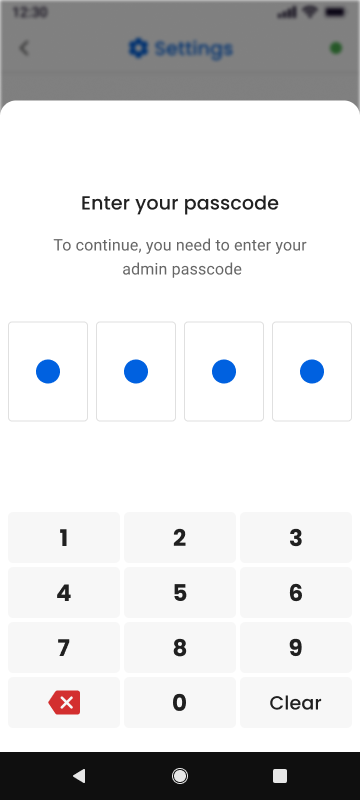
- Enter the new passcode.
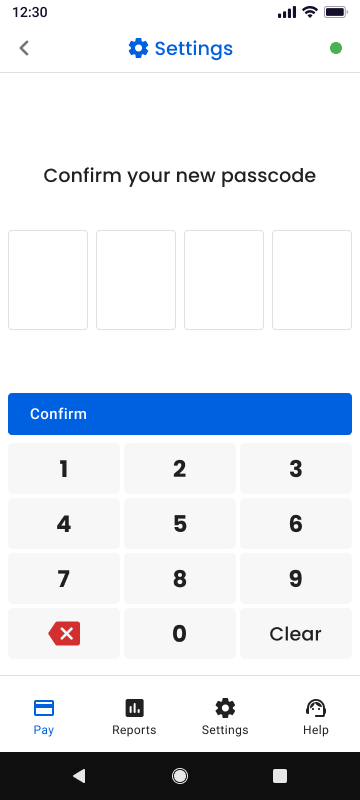
- Confirm the new passcode to save the change.
Turn Off Passcode
Use Turn Off Passcode if you no longer want the app to require a passcode.
To disable the passcode:
- Open Settings.
- Tap Passcode.
- Select Turn Off Passcode.
- Enter your current passcode to confirm.
Once disabled, the application will no longer require a passcode when opening the app or accessing protected areas.
Forgot Passcode
If you forget your passcode, use the Forgot Passcode option to begin the recovery process.
To reset a forgotten passcode:
- Open Settings.
- Tap Passcode.
- Select Forgot Passcode.
- Follow the prompts provided in the application to reset your passcode.
Updated 3 days ago