
Overview
The PayConex™ V4 API comes with the BluePOS set of endpoints for controlling P2PE PAX devices. These devices, among with many other manufacturers, employ the PCI-Validated P2PE Decryptx Solution. For all PAX models and their specifications, refer to P2PE PAX Devices.
BluePOS is a payment application that builds the bridge to our PayConex™ WebSocket Gateway. BluePOS functions in semi-integrated mode, enabling you to trigger transactions from external ECRs running from any location. This reduces the potential complexities of a local network configuration. Once the BluePOS App is launched, the device goes into listen mode with the WebSocket protocol awaiting request commands that initially come from the V4 REST API. The WebSocket Protocol ensures persistent and stable connection, and instant interactions with the device.
In summary, the REST API sends trigger commands to the device via HTTP. The command is forwarded to the WebSocket Gateway, which then delivers it to the device. This process is managed through both REST HTTP and WebSocket protocols.
During transaction processing, the customer is then prompted to interact with the card reader. Once the card is read and encrypted on hardware-level using SRED at the POS, a message is sent back through the WebSocket to the gateway, which communicates with the PayConex™ Services to process the transaction and send it over to the Payment Processor for authorization. At this point, Decryptx® Card Present Transaction workflow takes place. The response is returned, in real-time, to the ECR App that initiated the request over HTTP.
This is illustrated in the following diagram.
Semi-Integrated Mode
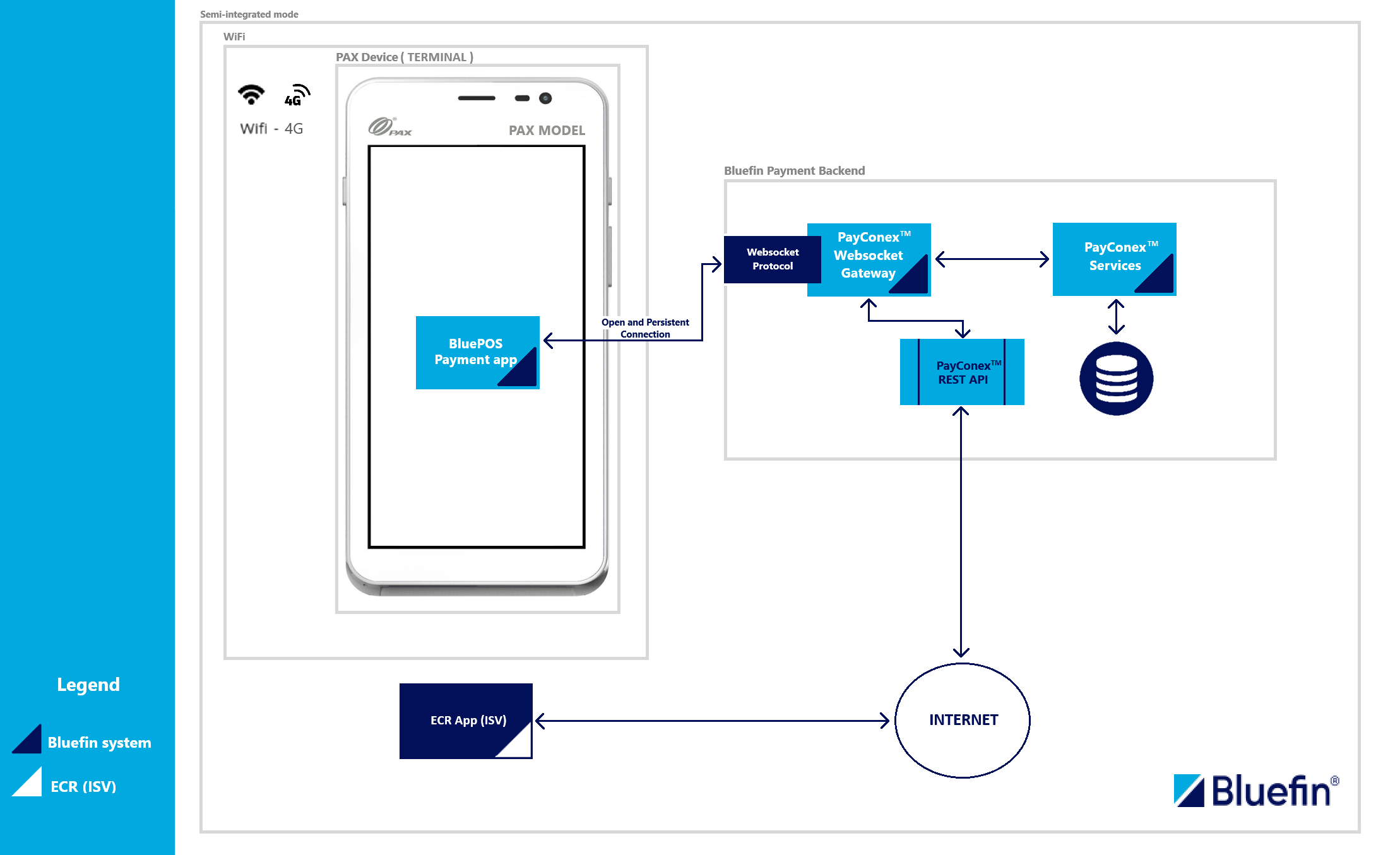
BluePOS® Semi-Integrated Mode Flow
Note* WiFi/4G connection on the device is required.
The integration is taken care of by the Bluefin operations team so you are all set to make your first transaction - whether you want your device to be in the staging, certification, or production environment. According to your needs, the Bluefin team oversees the integration of the BluePOS Application, ensuring the process remains streamlined and efficient.
Other than triggering transactions, the V4 API offers some other commands for controlling the device including:
- Status
- List Transactions
- Reboot
- Cancel Command
- Capturing Signature
- Show Dialog
- Receipt Reprint
- Custom Receipt
User Manual
Before using the BluePOS application, it is worthwhile checking out its user manual with the device transaction screenshots and examples.
This user manual guides you through the configuration of all Business Setting including tips, cash back, signature capture, etc.
NoteNote that the transaction examples from the user manual are not intended for Semi-Integrated Mode but Direct POI (Point Of Interaction) Device Integration Mode with manual card entries.
BluePOS User Manual
- Overview
- Getting Started
- Accessing the BluePOS App
- Processing Card Transactions
- Business Settings
- Receipts
- Reports
- Help
Key Advantages
-
Quick Integration
-
Device Lock-In
- Once the BluePOS Application is launched either on startup by default or by the merchant, the device is forced into the lock-in mode restricting the interaction with the device interface outside of the BluePOS Application. This prevents any malicious interactions with the device if stolen.
-
Reduces the potential complexities of a local network setup
-
Pre-configured Setup
- The BluePOS Application is configured and integrated by the Bluefin operations team
-
Various Card Reading Methods
-
Depending on a device, PAX devices support various card reading methods such as
-
Magnetic Swipe
-
Chip Insert / Card Insertion
-
Contactless Tap
-
Manual Card Entry (Virtual Keyboard on the device)
See the full list here: P2PE PAX Devices.
-
BluePOS provides functionality to authorize CP transactions that are processed using the card reading methods above. As mentioned before, this is done on hardware-level using SRED at the POS.
-
-
Real-Time Communication over the WebSocket Protocol and HTTP
Supported Transactions
BluePOS supports some common transaction types suitable for medium to large retail businesses.
- Sale
- Sale and Tip (gratuity)
- Sale and Cashback
- Force (Enabled depending on the Payment Processor)
- Authorization
- Authorization and Tip (gratuity)
- Refunds and Partial Refunds
- Credit (not supported by default for security reasons)
NoteTo see these in action, check out the Transaction Processing section.
Supported Features
- PAXSTORE app
- Connect from anywhere using the REST API, which provides flexibility and ease of access
Asynchronous Support for Non-Blocking Requests
By default, all BluePOS POI operations are configured as synchronous. You can also configure the BluePOS application on the device to run asynchronously, without implementing multi-threading or similar handling on your merchant systems.
What is async mode?
Some POI operations can take up to ~30 seconds to complete on the terminal (card read, PIN entry, printing, host round-trip).
Rather than making you hold an HTTP request open for that long, an async-capable endpoint accepts your request, returns 202 Accepted immediately, and delivers the final outcome later via an HTTP POST to the merchant's pre-configured postback URL.
The following endpoints are marked as async-capable if the target POI device is not configured for async mode.
| Method | Path | Async Capable |
|---|---|---|
| GET | /api/v4/accounts/{accountId}/poi/{serial}/capture-signature | Yes |
| POST | /api/v4/accounts/{accountId}/poi/{serial}/poslink | Yes |
| POST | /api/v4/accounts/{accountId}/poi/{serial}/show-dialog | Yes |
| POST | /api/v4/accounts/{accountId}/poi/{serial}/custom-receipt | Yes |
| POST | /api/v4/accounts/{accountId}/poi/{serial}/receipt-print | Yes |
| POST | /api/v4/accounts/{accountId}/poi/{serial}/sale | Yes |
| POST | /api/v4/accounts/{accountId}/poi/{serial}/force | Yes |
| POST | /api/v4/accounts/{accountId}/poi/{serial}/auth | Yes |
| POST | /api/v4/accounts/{accountId}/poi/{serial}/credit | Yes |
| POST | /api/v4/accounts/{accountId}/poi/{serial}/payment/{transactionId}/refund | Yes |
| GET | /api/v4/accounts/{accountId}/poi/{serial}/status | No |
| GET | /api/v4/accounts/{accountId}/poi/{serial}/list-transactions | No |
| POST | /api/v4/accounts/{accountId}/poi/{serial}/reboot | No |
| POST | /api/v4/accounts/{accountId}/poi/{serial}/cancel | No |
For moreFor more on this feature and how to configure it for your device, please reach out to the Bluefin Integrations team via [email protected].
Common Concerns
One major common concert would be the connection loss once the card is read and the decrypted payload is off to the PayConex™ Gateway to process the transaction. This is the case where either the ECR or the device loses connection to the internet or similar and is unable to properly handle the transaction workflow. For this reason, the PayConex™ V4 API supports pre-fetching the transaction id by Initializing a Transaction. The merchant is sure there is a transaction entry stored in the system and in case something erroneous or unexpected happens, the transaction entry either populates the error as transaction metadata or the status remains INITIALIZED so that the merchant can retry processing the same transaction.
NoteWe recommend initializing a transaction prior to processing any type of transaction. To see how to do this in the BluePOS API, see Initializing a Transaction.
Possible Uses
BluePOS semi-integrated mode works in scenarios with one or more ISV systems controlling at least one POS terminal with access to the BluePOS application via the REST API. But there must be one ISV controlling one device at a time, ensuring the device stability. For instance, in scenarios where two or more ECRs are trying to connect to the same device with the device running the current command, the WebSocket gateway effectively rejects any intervening requests to the device.
{
  "errorCode": 1013,
  "message": "Error. Pending process. Try again later."
}
Common Errors
These are some common errors that can happen when you are running the REST API calls.
Device Not Connected
In order to connect to the WebSocket Gateway and listen for messages, the BluePOS App has to be opened and running. Otherwise, you will see this message.
{
  "message": "Device not connected to Websocket Gateway",
  "errorCode": 40017,
  "errorType": "WEBSOCKET_GATEWAY_ERROR",
  "source": null,
  "value": null,
  "traceId": "d5d1ffe7-de23-4cfe-b2e1-7a43abbefc3c",
  "details": []
}
NoteThis is also the case while you are in the Admin page in the BluePOS.
* WebSocket Connection options is required to be turned on.
If you are still seeing this message, please contact Bluefin support team.
Unauthenticated/Unauthorized
API Key SetupThere are two API keys - one the device uses to communicate with the websocket and the PayConex Gateway (this API key is set up and maintained by the Bluefin Integration Team) and the other that you use to trigger commands onto the device.
For the distinction between Unauthorized and Unauthenticated error for the V4 API, see API Key Management | Common Errors.
In order to run commands on the device, make sure to have the right scope definitions for BluePOS in the API Key.
Here is a table of BluePOS scope definitions.
| Scope Name | Description |
|---|---|
pcx:poi:* | This is the top-level permission for all BluePOS permissions. Selecting this option grants all permissions associated with the BluePOS application. |
pcx:poi:status | This is the status permission. Selecting this option grants the permission to get the status of the BluePOS app. |
pcx:poi:reboot | This is the reboot permission. Enabling this permission allows rebooting the device. |
pcx:poi:cancel | This is the cancel permission. Enabling this permission allows rebooting the pending/ongoing command including transactions. |
pcx:poi:sale | This is the sale permission for transaction processing. Enabling this permission allows sending a sale transaction command to the device. |
pcx:poi:auth | This is the auth permission for transaction processing. Enabling this permission allows sending an authorization transaction command to the device. |
pcx:poi:refund | This is the refund permission for transaction processing. Enabling this permission allows sending a refund transaction command to the device. |
pcx:poi:force | This is the force permission for transaction processing. Enabling this permission allows sending a force transaction command to the device. |
pcx:poi:credit | This is the credit permission for transaction processing. Enabling this permission allows sending a credit transaction command to the device. |
pcx:poi:show_dialog | This is the show_dialog permission. Enabling this permission allows sending a command that spawns a dialog for the customer to interact with. |
pcx:poi:reprint | This is the reprint permission. This permission allows sending a command for the device to re-print a customer or merchant copy of a previous PayConex transaction without requiring manual intervention on the device. |
pcx:poi:custom_print | This is the custom_print permission. This permission allows sending a command for the device to print a custom receipt. |
pcx:poi:capture_signature | This is the capture_signature permission. This permission allows sending a command for the device to initiate the screen for capturing a signature. |
Also SeeFor more on API keys, check out the API Key Management.