
Tools
The following capabilities are available from the Tools tab. Refer to the sections below for more detailed information.
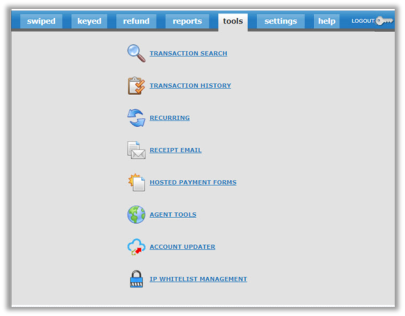
| Option | Description |
|---|---|
| Transaction Search | Search for transactions using a robust search filter and create customizable reports that can be exported. See Reports > Transaction Search in this guide. |
| Transaction History | Review transaction data including Transaction Date, Name, Last 4, Amount, and Trans Type. See Reports > Transaction History in this guide. |
| Recurring | Review Recurring Billing transactions and apply search filters. |
| Receipt Email | Customize the receipt email that goes out to your customers. Refer to Working With Receipts > Receipt Email Template in this guide. |
| Hosted Payment Forms | Create a public page on the internet where your customers can submit payments. |
| Agent Tools | Manage and access your merchant accounts. You can also run merchant transaction reports. |
| Account Updater | Manage account updater processes. |
| IP Whitelist Management | You can restrict the location from which transactions can be processed, by “whitelisting” a specific IP address(es). |
Transaction Search
Transaction History
Recurring
From the Recurring page you have the ability to create a new recurring schedule and search for (or edit) existing recurring schedules.
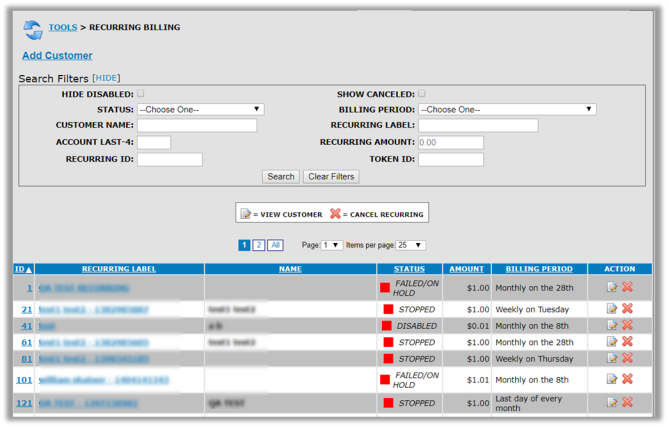
Creating a new Recurring Payment Schedule
Setting up a recurring schedule using a previous transaction
- Locate a transaction record containing the card that should be used to set up the recurring transaction.
- Click the View Transaction icon (magnifying glass) next to the transaction.

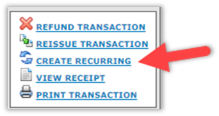
- Click CREATE RECURRING.
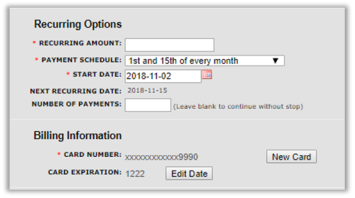
- The card number will be populated for you. Enter the amount and frequency, and other details as needed.
Setting up a recurring schedule using a new card
- Click the Tools tab and then the "Recurring" link.
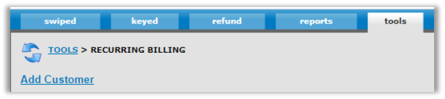
- Click Add Customer.
- Enter the amount, start date, frequency, card data, and customer info.
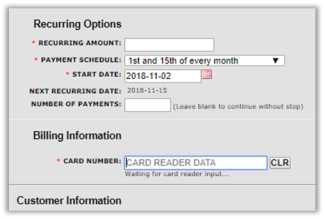
- Click Add Customer when you're done.
Editing Recurring Transactions
- Click the Tools tab and then the "Recurring" link.
- Navigate to the transaction using either of the following options:
- Enter search criteria and click Search.
- Use the column headings to sort the transactions.
- Click the transaction you want to edit.
- Click Edit.
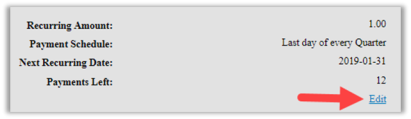
- Update the options as needed.
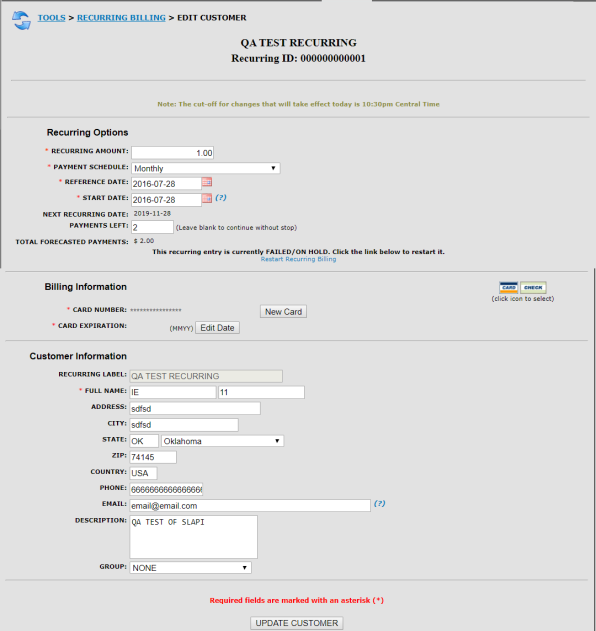
- Click UPDATE CUSTOMER when you're done.
Cancelling Recurring Transactions
- Click the Tools tab and then the "Recurring" link.
- Navigate to the transaction using either of the following options:
- Enter search criteria and click Search.
- Use the column headings to sort the transactions.
- Enter search criteria and click Search.
- Use the column headings to sort the transactions.
- Click the Cancel Recurring icon (red "X")

- Click OK to confirm.
Receipt Email
Here you can customize the receipt email that goes out to your customers.
Receipt Email Template
You can customize the receipt email that goes out to your customers. Edit the From, Subject, and Body based on your preference. Click Update when you're done.
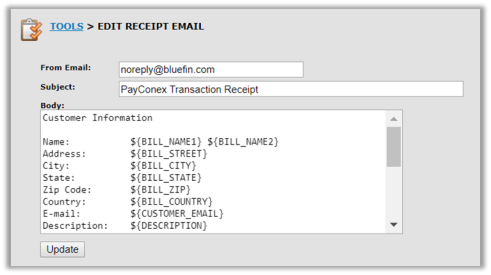
NoteThe "From" email address is not validated. The "Body" will populate with the data in each field shown. You can delete fields as desired.
The table below summarizes the parameters that are available for the email body.
| Receipt Format | API Parameter | Description |
|---|---|---|
| ${BILL_NAME1} | first_name | The name value submitted in the request. |
| ${BILL_NAME2} | last_name | The name value submitted in the request. |
| ${BILL_STREET} | street_address1 | Customer’s street address. |
| ${BILL_CITY} | city | Customer’s city. |
| ${BILL_STATE} | state | Customer’s state |
| ${BILL_ZIP} | zip | Customer’s zip |
| ${BILL_COUNTRY} | country | Customer’s country |
| ${CUSTOMER_EMAIL} | Customer’s email | |
| ${CUSTOMER_PHONE} | phone | Customer’s phone |
| ${COMPANY} | company | Company name field from the transaction. |
| ${GROUP} | group | Group value from the transaction. |
| ${DESCRIPTION} | transaction_description | The same value submitted in the request. Typically used as a description of the payment. |
| ${CUSTOM_ID} | custom_id | The same custom_id value submitted in the request. |
| ${TRANTYPE} | transaction_type | The type of transaction made. |
| ${CARD_NUMBER_XXXX} | last4 | The last four digits of the card number or Primary Account Number (PAN). For ACH, it is the last four digits of the account number. |
| ${CARD_EXPIRE} | card_expiration | The month and year of the card expiration date in the format MMYY. For example, 0118 for January 2018 |
| ${CARD_BRAND} | card_brand | Customer's brand of card used. VISA, MASTERCARD, AMERICAN EXPRESS, DISCOVER, ACH, EBT. |
| ${AMOUNT} | transaction_amount | This is the dollar (or other currency) amount of the transaction. |
| ${AUTH_DATE} | transaction_timestamp | This is the timestamp of the newly created transaction. |
| ${TRANS_ID} | transaction_id | The transaction id for the new transaction. When using tokenization, this is the transaction_id that you submit as the token_id. |
Hosted Payment Forms
The Hosted Payment Form is a pre-built web form that allows merchants to accept web payments using a credit card or ACH accounts.
This is ideal for merchants who have a few products or wish to accept donations. For more customizable websites, contact Bluefin Technical Support for information about integration with the PayConex Secure iFrame and PayConex APIs.
Note:
NoteIf the options below do not display on the PayConex tools page, they will need to be enabled by an administrator. Please contact Bluefin Support for assistance.
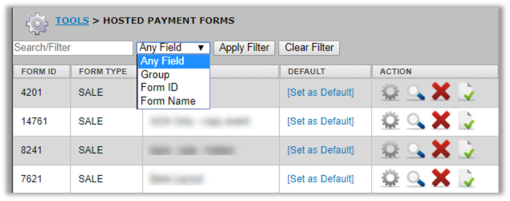
You can search for your hosted payment forms by filtering the list by Group, Form ID, or Form Name.
In the Action column, there are four functions that can be performed.
| Action | Icon | Description |
|---|---|---|
| Edit |  | Edit/configure the selected hosted payment form. |
| Preview |  | Preview the selected hosted payment form. |
| Delete |  | Delete the selected hosted payment form. |
| Create a Copy |  | Create a copy of the selected hosted payment form. |
Adding Payment Forms
To set up a payment form/page do the following:
- Scroll down and click Create New.
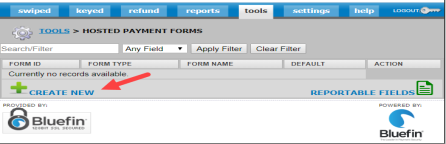
- Enter a Name for the page in the open text box and click Create New Form.

- Complete the fields and click Create New Form.
The following information provides greater details on the setup/configuration of a hosted payment page.
General
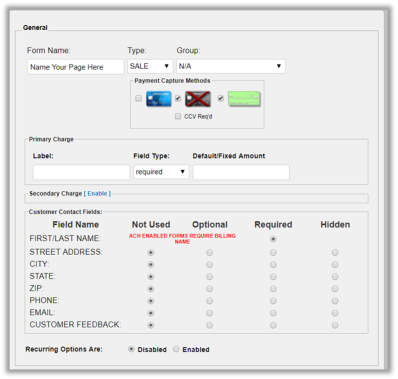
Define the required inputs for your payment form here.
| Item | Description |
|---|---|
| Form Name | Enter a form name for identification purposes only. Open text field. |
| Type | Select the transaction type: Sale: (Default) Indicates that the amount will be authorized upon submission and automatically captured at the end of the day. $0 Auth: Disables the amount setting and only verifies and tokenizes the credit card data. Note: This option is not commonly used. Store: Disables the Primary Charge section and only tokenizes the credit card data. NOTE: This option is not commonly used. |
| Group | Optional. Select a group the will be associated with the primary charge when it flows into the merchant account. (This field can be blank.) |
| Payment Capture Methods | Required - Select at least one. Select one or more options: - Card Reader / Card Entry Devices - Transactions that use a card reader (such as SREDKey, M130 or SecuRED.) - ECommerce / Keyboard entry - ACH Check payment Primary Charge |
| Primary Charge | Label: Enter a display name. It will appear next to the dollar amount on your page. (Example: “Donation”, “Amount”, “Pledge”.) Field Type: Select the field preference (Required, Display Only, Hidden) from the drop-down list. Default / Fixed Amount: Enter an amount or leave the field blank. If an amount is entered, it can be overridden in request data. |
| Secondary Charge | Optional. By default, this option is disabled. Secondary charges are processed on the main account with NO group tag identification or payment routing. NOTE: If this option is enabled, the secondary charge will be routed to the main account. |
| Customer Contact Fields | Based on your security settings, select the appropriate options for reporting purposes only. NOTE: If AVS authentication is enabled in your settings, then address data must be required on your form. |
| Recurring Options | The default is Disabled. Select Enabled to set up recurring billing plans as needed. |
Appearance
To customize the form's appearance to match your environment, click Display to expand this section:
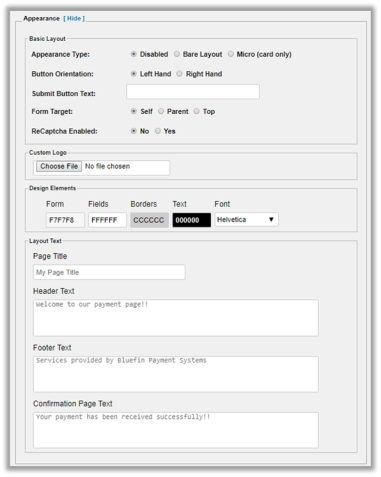
Basic Layout
The following information is a description of the options in the "Basic Layout" section of the Hosted Payment Form editor.
| Item | Description |
|---|---|
| Appearance Type | Disabled: Minimal appearance; reduces the size of the form so it appears small in the pop-up window. Bare Layout: Hides borders and some padding. Micro (card only): Hides all headers, text, and logo. Suitable for use with iframe. |
| Button Orientation | Set where the Submit button should display. |
| Submit Button Text | The default is “Process Payment.” Customize this text based on your preference. |
| Form Target | The default is Self. If the form is embedded in an iframe, then set the target to configure which frame should receive the confirmation page. |
| ReCaptcha | Yes / No. The default is Yes - enabled. |
Custom Logo
The custom logo section allows you to upload and use a custom image on a hosted payment form.
File formats accepted: BMP, GIF, JPG, JPEG, PNG, TIFF
Maximum Image size: 600 pixels wide and 200 pixels high
Maximum file size = 1MB
NoteIf you upload a logo, it will override the Page Title.
Design Elements
In the design elements section, you can select the font to use and the color of the form, fields, borders, and text.
Layout Text
Customize the text that displays in the form: Page Title, Header Text, Footer Text, and Confirmation Page Text.
NoteYour Page Title text will not display if you upload a logo.
Response Handling
To redirect transaction responses for customized receipts, declines, asynchronous POSTback behavior, and cancellations, enter the appropriate URL in the corresponding field.
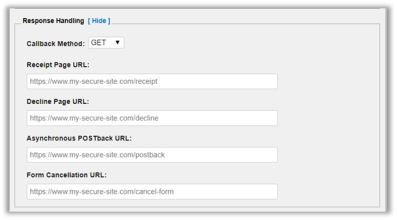
| Item | Description |
|---|---|
| Callback Method | This is the HTTP method used when the hosted payment form redirects to the receipt, decline, or form cancellation URLs. |
| Receipt Page URL | This is the URL that will be redirected to when a transaction is processed. If a "Decline Page URL" is provided this URL will only be used for approved transactions. |
| Decline Page URL | This is the URL that will be redirected to when a transaction is declined. If no "Decline Page URL" is present then the redirect defaults to using the "Receipt Page URL". |
| Asynchronous POSTback URL | This URL is used to send transaction responses asynchronously via POSTback. |
| Form Cancellation URL | This is the URL that will be redirected to when the cancel button is clicked on the hosted payment form. |
NoteIf the Receipt Page URL is specified, and the Decline Page URL is blank, then the system will send decline responses to the Receipt Page URL.
Form Timeout
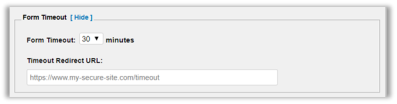
Select a number from the Form Timeout drop-down list to define how many minutes the payment page should be visible before the transaction is automatically canceled. You can also enter a Timeout Redirect URL.
Custom Fields
You can use Custom Fields for non-standard data that your business, or your customers, need to complete the end-to-end payment process. The data sent from custom fields will display on the standard receipt and decline pages unless specified as "hidden."
Best Practice:
- Use custom fields to pass data from your system to PayConex.
- Use custom fields to pass data to your system when it does not need to be reportable from PayConex.
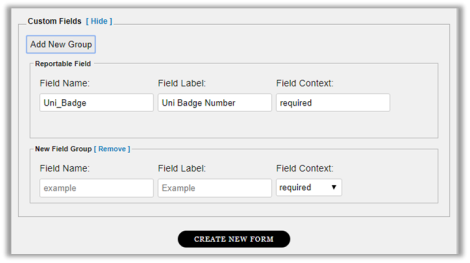
To add Custom Fields, do the following:
- Click Display to expand the section.
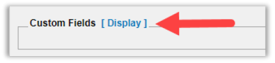
- Click Add New Group at the top

- Complete the fields that appear for the new group

- The *Field Name input should be the identifier that is used to pass the field value with the transaction.
If the following field names are used, the values are automatically captured inside PayConex's transaction detail and QSAPI reports for you.
- custom_id
- custom_data
- transaction_description
- company
NoteIn general, custom fields are not reportable with the exception of the filed names listed above. For information on creating a custom field that is reportable refer to the Reportable Fields section below.
ImportantThese parameters are case sensitive and you must use lower case.
-
Field Label is the display name that will appear on the hosted payment form.
-
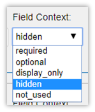
Field Context allows the selection of how to display, hide, or disable the parameter's appearance on the form.
- Click the Create/Update Form button at the bottom of the page.
Reportable Fields
You can use Reportable Fields for data that your business or customers need to complete the end-to-end payment process. The data will be both transmitted in your return response and captured inside PayConex reporting.
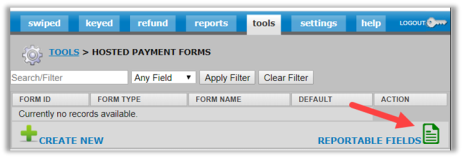
To update reportable fields, click Reportable Fields at the bottom of the Tools > Hosted Payment Forms page.
Adding New Reportable Fields
To create a new reportable field, do the following:
- Click Add New Reportable Field at the top.
- Complete the fields.
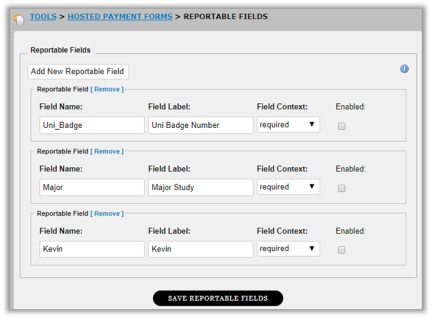
- *Field Name input should be the identifier that is used to pass the field value with the transaction.
- Field Label is the display name that will appear on the hosted payment form.
- Field Context allows the selection of how to display, hide, or disable the parameter's appearance on the form.
- Enabled this checkbox enabled the reportable field for use in the hosted payment forms.
NoteIf the Field Context is Display Only or Hidden, it must be passed with the request even if the value is blank/null. Enabled
- Click Save Reportable Fields at the bottom when you're done.
Editing Reportable Fields
To edit a reportable field, modify the parameters as needed and click Save Reportable Fields when you're done.
Deleting Reportable Fields
To delete a reportable field, click Remove.

Agent Tools
A PayConex account that is configured as an agent account allows the management of multiple PayConex merchant accounts.
The "Agent Tools" section of the tools page allows the management and access merchant accounts provisioned within an agent account. You can also run merchant transaction reports.
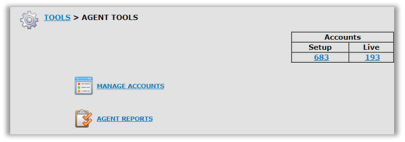
If you have multiple locations that you would like connected via an agent account, please contact Bluefin support.
Manage Accounts
To search for a merchant account, you can filter the list by selecting one or more of the Account Status checkboxes.
Also, enter an account name or number and then click Filter. To clear the filer, click Reset.
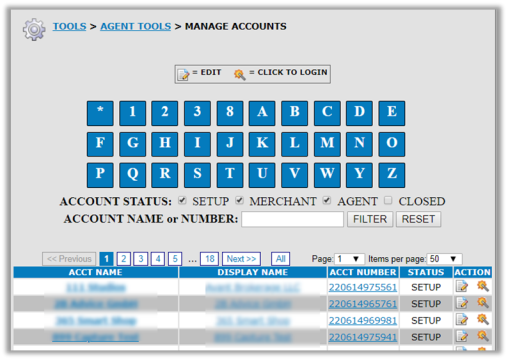
From the Action column, you can edit an account and log in to the account.

Agent Sub-Account Reporting
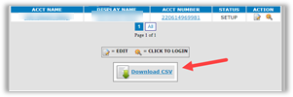
You can download a sub-account report from Manage Accounts by clicking Download CSV. The report includes the following information about each account under the selected agent account.
- PayConex Account Number
- Account Name
- Display Name
- Address
- City
- State
- Zip
- Phone
- Processor MID (just MID, not what processor)
Accessing Location Accounts from Agent Login
- Once you are logged into the agent account, from Manage Accounts, select an account.
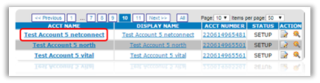
- Click the account number hyperlink at the top of the page, on the right side.
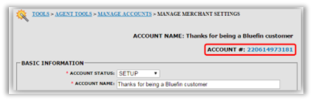
NoteThe account name will display in the top right corner to indicate the account you accessed.
Agent Reports
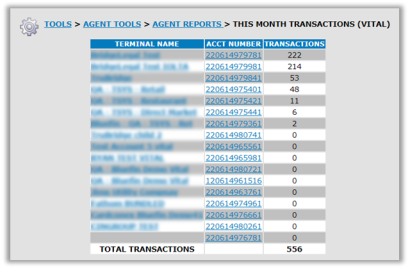
Run a monthly report of merchant transactions for either the current month or last month.
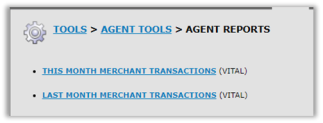
Select an option based on your preference.
Account Updater
Account Updater enables Elavon boarded merchants to periodically verify and update their cache of stored credit/debit card Primary Account Number (PAN) data. If you have scheduled or recurring payments this feature might be beneficial because it ensures that your processing is not interrupted with out-of-date payment data.
ImportantThe Account Updater Program (AUP) is an interface from PayConex to Elavon. Therefore, this feature is only available to Elavon boarded merchants. Additionally, merchants need to enroll in this feature. To enroll in Account Updater, please contact your Bluefin representative for information and pricing.
Using the Bluefin Secure FTP process, you can upload files with your existing customers' card payment data (tokens or PAN.) The AUP will process and submit this information to Elavon for verification, receive the response and automatically update existing Recurring Payments tied to the submitted tokens/PAN. The AUP also displays the results that are returned in an easy-to-understand format.
The AUP page displays the requests at the request file level for your associated MID(s).
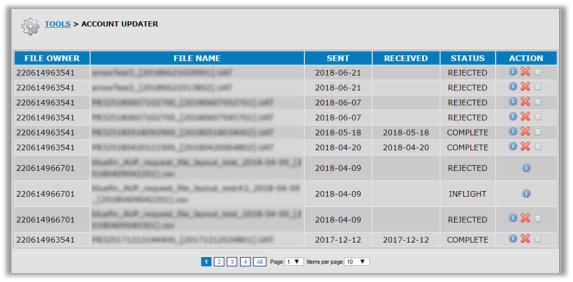
| Column Name | Description |
|---|---|
| File Owner | PayConex Account ID. |
| File Name | Name of the file submitted to AUP. |
| Sent | The date the AUP received the file. |
| Received | The date that Elavon response(s) were received and processed by Bluefin AUP. |
| Status | Current file status: OPEN – File received but not processed or sent to Elavon yet. |
| Action | View: To delete multiple files, select the check box and then select "Purge Selected" located at the bottom right of the table. This option only appears if a check box is selected. |


Viewing File Details
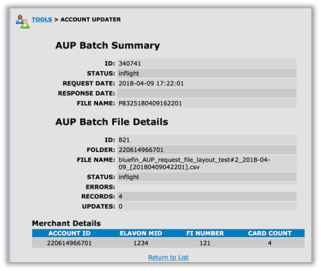
View a file that has a COMPLETE / REJECTED status to see the following file details:
- Batch Summary information
- Batch File Details
- Merchant Details, when applicable. Summary information about the merchant data contained in the file -- useful if you have more than one PayConex account in the file.
This is a screenshot of a file that has been completed with account updater.
Merchant Details included when applicable.
Summary information about the merchant data contained in the file -- useful if you have more than one PayConex account in the file.
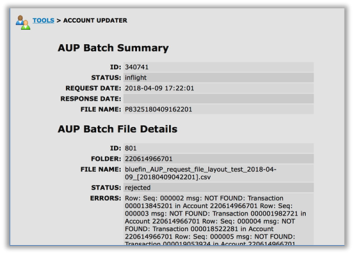
This is an example where the file was rejected with the errors included.
NoteThe scope of merchant summary information displayed is restricted to viewing the user's rights to the file.
- If the user is tied to the merchant that submitted the file, they will be able to see summary information for all merchants in the file.
- If the user is tied to one of the merchants within the file, they will only see the specified merchant's entry.
Creating a File for Uploading (Request File)
All files passed back and forth with the AUP are comma-separated values (.csv files).
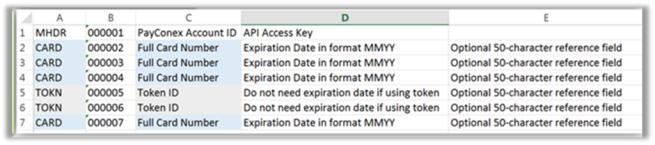
Create a CSV file with card numbers or tokens you want to check using the format described below.
Merchant Header (MHDR) -- Row 1
IMPORTANTThis row identifies the merchant account that needs to be updated. This row must be completed as illustrated above and defined in the following table: Record Type MHDR
| Record Type | MHDR |
|---|---|
| Sequence | 6-digit, zero-filled, incrementing number |
| Account ID | 12-digit PayConex Account Number |
| API Access Key | 32-character PayConex API Access Key |
| FI Number | 3-digit Financial Institution Number (optional) |
Populate additional rows according to the following:
Token Request Detail (TOKN)
| Record Type | TOKN |
|---|---|
| Sequence | 6-digit, zero-filled, incrementing number |
| Token ID | 12-digit PayConex Transaction Token ID |
| Custom Label | Custom label field used for reference (Optional) |
Card Request Detail (CARD)
| Record Type | CARD |
|---|---|
| Sequence | 6-digit, zero-filled, incrementing number |
| Card Number | 13-16-digit Primary Account Number (PAN) from card |
| Expiration | 4-digit, zero-filled card expiration date [MMYY] |
| Custom Label | Custom label field used for reference (Optional) |
Example:
MHDR,000001,120614961789,9c62606abc4a73af0086ba2ffb65e482 CARD,000002,4503300000001238,1218,Ref ABC CARD,000003,5415244444444444,1222,Ref XYZ

CARD,000004,5424180001234506,1218, CARD,000005,4002960001111116,0416, CARD,000006,4005571701111111,0416, CARD,000007,5424180011113336,1218,Ref 123 CARD,000008,4159282222222221,1215,

... CARD,000032,4124939999999990,1215,

MHDR,000033,120614961797,0444eebb71418c7d23aed96880d0d6e8 TOKN,000034,000000143347,Ref ABC TOKN,000035,000000114608,

TOKN,000036,000000142160, TOKN,000037,000000116520,Ref 123 TOKN,000038,000000125027,Ref XYZ
Uploading a Request File
Uploading Files to AUP
- Create a CSV file (Refer to Creating a File for Uploading above for details.)
- Log into CardConex.
NoteIf you do not have a CardConex account, please contact Bluefin Support.
- Click Folders.
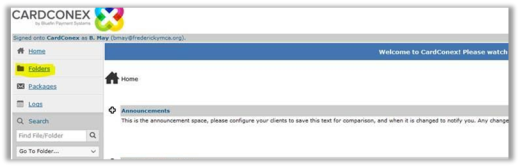
- Click Batch-Prod.
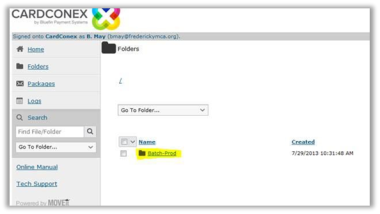
- Click the IN folder.
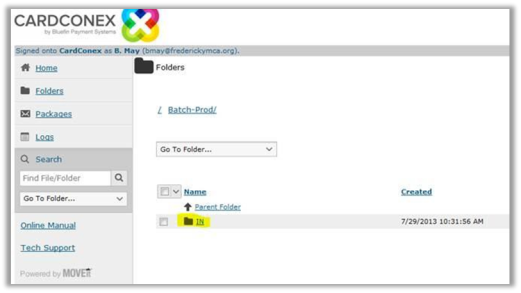
- Click your account folder.
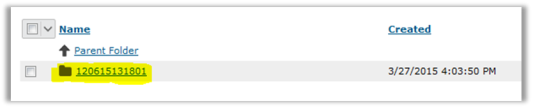
- From Upload a File click Browse and navigate to your file and then click Upload.
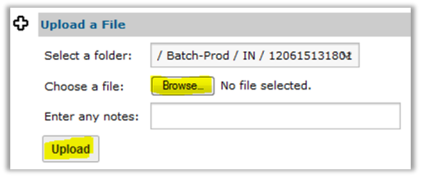
NOTEThe response file will be available 3-5 days later.
Response File
Response files mirror the Request files. For every record in the Request file, there will be a matching record in the Response file.
NOTEThe columns in the request file are different from the columns in the response file.
File Header (FHDR)
| Record Type | FHDR |
|---|---|
| Sequence | 6-digit, zero-filled number. Always "000000" |
| Response Type | Pass, Fail If the response type is Fail, the request file had errors that caused it to be rejected. The extension on the response file name will be ".ERR" |
| Response Date | Date/Time response processed OUT. [YYYYMMDDHHMMSS] |
Merchant Header (MHDR)
| Record Type | MHDR |
|---|---|
| Sequence | 6-digit, zero-filled, incrementing number |
| Account ID | 12-digit PayConex Account Number |
Token Response Detail (TOKN)
| Record Type | TOKN |
|---|---|
| Sequence | 6-digit, zero-filled, incrementing number. Maps directly to the Sequence Number in the request file. |
| Response Code | 1-character Elavon AUP response code. |
| New Token ID | 12-digit PayConex Transaction Token ID. Present only if Response Code is "A" or "B". |
| New Expiration | 4-digit, zero-filled card expiration date [MMYY]. Present only if Response Code is "A" or "B". |
| New Card Brand | Card brand of new card (Only if Response Code is "A") |
| New Last 4 | Last 4 of new card (Only if the Response Code is "A") |
| Recurring ID | Recurring Schedule ID(s) touched. Present only if Response Code is "A" or "B". |
| Old Token ID | Old Token ID (same as one in the matching request record) |
| Old Last 4 | Old card last 4 |
| Custom Label | Optional field |
Card Response Detail (CARD)
| Record Type | CARD |
|---|---|
| Sequence | 6-digit, zero-filled, incrementing number. Maps directly to the Sequence number in the request file. |
| Response Code | 1-character Elavon AUP response code. |
| New Card Number | 13-16-digit Primary Account Number (PAN) from the card. Present only if Response Code is "A". |
| New Expiration | 4-digit, zero-filled card expiration date [MMYY]. Present only if Response Code is "A" or "B". |
| New Card Brand | Card brand of new card (Only if Response Code is "A") |
| New Last 4 | Last 4 of new card (Only if the Response Code is "A") |
| Recurring ID | Recurring Schedule ID(s) touched. Present only if Response Code is "A" or "B". |
| Old Card Number | Old card number (same as one in the matching request record) |
| Old Last 4 | Old card last 4 |
| Custom Label | Optional field |
Error Response Detail (FAIL)
| Record Type | FAIL |
|---|---|
| Row ID | 6-digit number. Maps directly to the physical row in the request file. |
| Sequence | 6-digit, zero-filled number. Maps directly to the Sequence number in the request file. |
| Response Type | Pass, Fail |
| Response Date | Date/Time response processed OUT [YYYYMMDDHHMMSS] |
Response File Match Table
Response File Match Table
In the response file, the 3rd element of the TOKN or CARD response will have a letter that corresponds to the following table. The actual response Bluefin receives is included along with a brief description of the merchant's actions. If a TOKN was included by the merchant in their request file, match codes A and B will be updated by Bluefin accordingly.
| CODE | RESPONSE | DESCRIPTION |
|---|---|---|
| A | Match - Update PAN | New account number and expiration date. Use going forward. |
| B | Match - Update Expiry | New expiration date, same account number. Use going forward. |
| C | Match - Closed | Account is marked as closed. Cardholder should be contacted. |
| D | Match - Contact Cardholder | Unknown reason and cardholder should be contacted. |
| E | Match - No Change | No update and it matches, so continue to use. |
| F | No Match - BIN in range | No match to the data provided. |
| G | No Match - BIN out of range | No match to the data provided. |
| H | Error - Non-numeric PAN | Bad PAN data (not valid characters or format). |
| I | Error - Failed Luhn | Doesn't match a Luhn (Mod 10) check (not a valid card value) |
| J | Error - Invalid Expiry | Expiration date was not properly formatted. |
| K | Error - Invalid MID | MID for the file is incorrect. |
Example
Code A and B are illustrated in the following:
FHDR,000000,pass,20151223152623 MHDR,000001,120614961789
CARD,000002,A,4862345634563454,1221,VISA,3454,,4503300000001238,1238,Ref ABC CARD,000003,E,,,,,,,,
CARD,000004,G,,,,,,,,
CARD,000005,G,,,,,,,,
CARD,000006,B,,0419,,,,,,
CARD,000007,G,,,,,,,,
CARD,000008,B,,1220,,,,,,
... CARD,000032,A,4862111122223336,1218,VISA,3336,,4503300000001238,1238, MHDR,000033,120614961797
TOKN,000034,B,,0520,,,,,,
TOKN,000035,C,,,,,,,,
TOKN,000036,E,,,,,,,,
TOKN,000037,B,,1022,,,,,, TOKN,000038,A,000000164422,1221,MASTERCARD,4784,,200003016401,4784,Ref XYZ
IP Whitelist Management
You can restrict the location from which transactions can be processed, by “whitelisting” specific IP addresses.
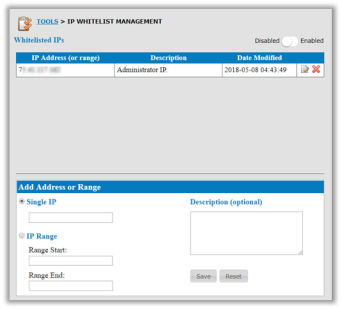
IMPORTANTWhen this option is enabled, you will only be able to process transactions from the specified IP addresses. Users attempting to process from non-whitelist IP address will receive a Transaction Error message and you will receive a System Notification email.
Enter a single IP address or an IP address range. Click Save when you’re done. Then adjust the Enabled/Disabled slider option as desired.
To edit an IP address, click the Edit icon.
To remove an IP address, click the Remove icon.
Updated 6 months ago