
Accessing PayConex
PayConex is Bluefin's proprietary payment gateway. It can be used independently, integrated with software, or with QuickSwipe, our mobile solution for iPhones and iPads. PayConex was the first payment gateway in North America to offer PCI-validated Point-to-Point Encryption (P2PE). For more information about Bluefin and our products, including P2PE, please contact us or visit our website: www. Bluefin.com.
In this guide, we will review the following topics:
- Activating a PayConex User
- Understanding User Permissions
- Logging in
- Logging Out
- Changing a Forgotten Password
Activating a PayConex User
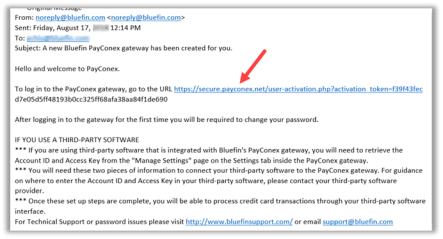
You will receive a "Welcome to PayConex" email. Inside the email will be a hyperlink to access PayConex and instructions to customize your password.
IMPORTANT: After clicking the link, record your Username and Account ID/name!
- Click the link in the email.
- Create a new password. Passwords must contain at least one uppercase letter, one symbol, and one number.
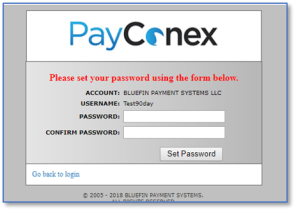
Important Login InformationRecord your Username and Account ID/name! You will be prompted to enter this information the next time you log in.
For security and compliance, you will be required to change your passwords every 90 days.
Understanding PayConex User Permissions
Logging In
Related Information: Password Requirements are summarized in Settings.
Login Errors
You can attempt to log in eight times. After the eighth unsuccessful try, your account is locked.
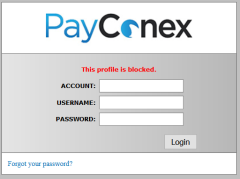
To unlock your account, contact the lead in your company who has administrative rights.
NoteAdministrators should reference our Managing Users guide for additional information.
Forgot Your Password?
If you do not remember your password, and your account is not locked, you can reset your password yourself. Click Forgot your password? and follow the prompts to enter your old password and then set a new password.
1. Logging in
Go to PayConex:
- Test Environment: https://cert.payconex.net
- Production Environment: https://cert.payconex.net

2. Enter the PayConex account.
The name or number of your account can be used for this.

3. Enter your username

4. Enter your password

5. Click on the Login Button

6. Logout
Click the LOGOUT button in the top right

Logging Out
Changing Forgotten Password
Updated 6 months ago