
Navigating PayConex
- Navigation Tabs
- Swiped
- Keyed
- Refund
- Reports
- Tools
- Settings
- Help
- Logout
Navigation Tabs
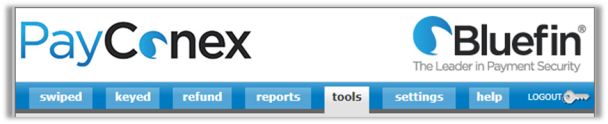
In the PayConex Portal the tabs at the top of the screen are used to navigate to each section of the application.
| Tab Name | Description |
|---|---|
| Swiped | Allows for processing of a swiped transaction directly in the PayConex Portal. |
| Keyed | Allows for processing of a keyed transaction directly in the PayConex Portal. |
| Refund | Refund a transaction using the transaction ID / referenced. |
| Reports | Search for a transaction and run a variety of reports including Transaction History, Custom Reports, Daily Card Totals, Daily Payment Type Report, Card Batch Report, ACH/Check Status Report, ACH/Check Batch Report, ACH/Check Report by Action Date, ACH/Check Declines/Returns Report, Event Log, and Input Group |
| Tools | Search for a transaction and as well as the following: Transaction History Report, Recurring, Receipt Email, Hosted Payment Forms, Agent Tools, Account Updater, and IP Whitelist Management. |
| Settings | The following options for Administrators are: Manage Settings, Change Your Password, Manage Users, Manage Groups, and Agent Tools |
| Help | Displays how to contact your Bluefin agent and links to Frequently Asked Questions, PayConex Users Guide & Release Notes, and PayConex for Salesforce Help Guide. |
Notifications
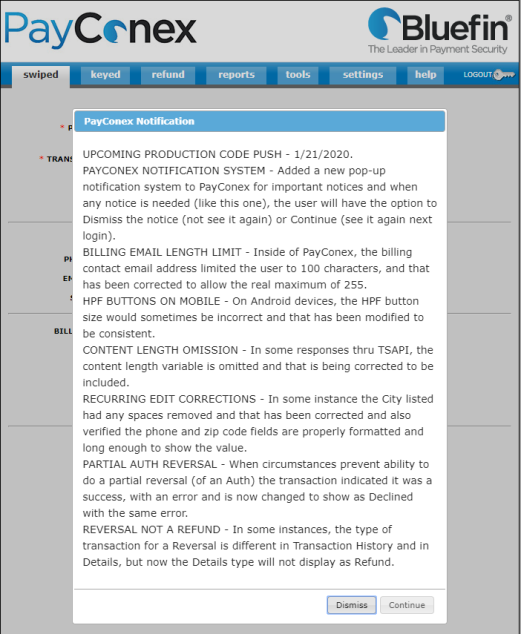
After logging into PayConex, a pop-up dialogue box with system notifications will display as needed. After reading the notice(s), you can click Dismiss to close the pop-up and it will not display the next time you log in. If you click Continue, the pop-up will close but it will display again the next time you log in.
WHAT’S NEXT
Tell your users what they should do after they've finished this page
Updated 6 months ago
Did this page help you?